UPGRADER






 6 823

 NEW SKINS ›
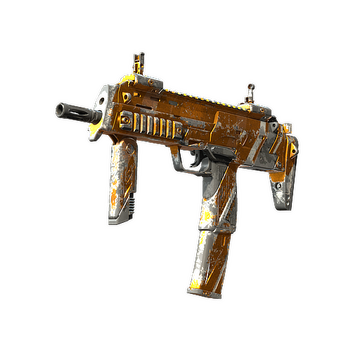
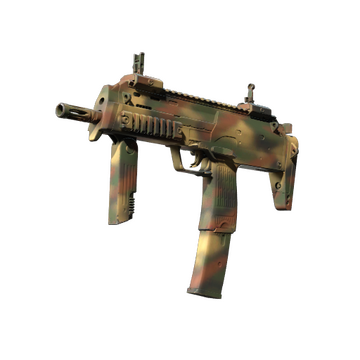

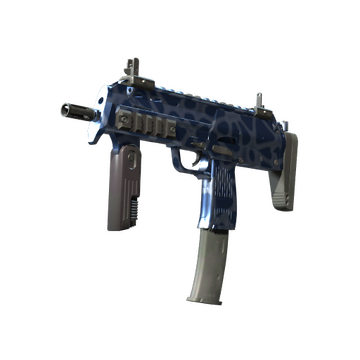



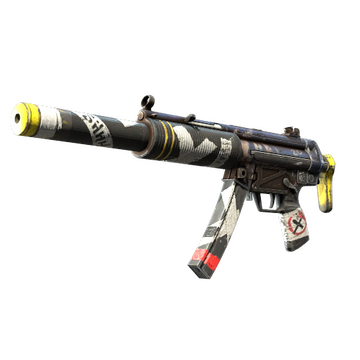



CS2 Upgrader Site
Upgrader is a friendly CS2 skin upgrader where you can turn the ordinary drops sitting in your Steam backpack into skins you actually want to show off. It runs on provably fair spins, connects to your Steam account through the official OpenID login, and gives you three different ways to play with your inventory. Whether you have one skin or a stack of them, you get to decide how far to push. The odds are shown before every spin, the mechanics are open, and you stay in control of the whole thing from start to finish.
What Upgrader Actually Does
Think of your Counter-Strike inventory as a small collection you have been quietly building for a while. Some pieces you love, others you barely notice. Upgrader gives you a way to trade the ones you barely notice for a shot at something better. You pick what you want to put in, you pick what you want to reach for, and the platform tells you exactly what your chances are before you press the button. If it lands, the new skin is yours. If it does not, you know exactly why, because everything the platform does is out in the open.
The whole thing is built around CS2 skin traders — from people who have never touched an upgrader before to folks who have been in the community for years. You can dabble with one attempt just to see how it feels, or you can settle in for a longer session with a clear plan. It fits both. And because everything ties back into your Steam inventory, you never lose sight of what you actually own at any point.
Free Balance and Bonuses to Get You Started
Everyone likes a bit of extra when they are trying something new, and Upgrader keeps that in mind. When you make your first deposit, a welcome bonus lands in your account so you have a little more room to play with right away. The exact size depends on which deposit method you use and whether there is an active promo code running that day. You can pop over to the promo codes page any time to see what is currently on offer.
The bonuses do not stop after the first day either. There are reload boosts when you top up again, a daily reward for players who stick around, and a referral perk that pays you a share whenever friends you invite start playing. Every bonus comes with clear terms — how long it lasts, what you need to do to unlock it, and where you can use it — so nothing catches you off guard later.
Here is a quick look at the bonus options available:
- A welcome bonus that lands after your first deposit
- Reload bonuses that stack a bit extra onto later top-ups
- Daily rewards that add up if you stop by often
- Referral commission from friends you bring in
- Seasonal promo codes that pop up around events
Getting Set Up — It Only Takes a Minute
Signing up is refreshingly quick. There is no long form to fill in, no email confirmation to wait for, and no password to invent and forget. You just tap Sign in with Steam, approve the login on Valve's own page, and you are back on the platform with an account already good to go. Steam handles the whole authentication step through OpenID, which means your Steam password never touches our side of things.
Here is what the whole flow looks like:
- Click Sign in with Steam from the front page
- Approve the login on the Steam authentication screen
- Tick the box confirming you are 18 or older and accept the terms
- Drop in your Steam trade URL so the platform can move skins in and out
- Add your first deposit and you are ready to spin
One quick tip before you deposit anything worth caring about: turn on Steam Guard two-factor authentication if you have not already. It is one of those small things that makes a huge difference for anyone dealing with CS2 skins, and it does not cost anything to enable. From your account settings on Upgrader, you can also check active sessions, see recent devices, and clear out any old logins if you ever want a fresh start.
If a withdrawal you make ever gets big enough that identity verification kicks in, do not worry — the process is friendly and usually wraps up within a day. You send in the documents, our team checks them, and you are back to playing. The KYC guide walks through exactly what to prepare so you can move through it without any guesswork.
The Ways You Can Top Up
Everyone funds their play a bit differently, so Upgrader keeps the deposit menu open and flexible. If your Steam backpack is already stocked, you can send skins straight in as a trade offer — no need to touch a market or convert to cash. If you would rather stay in crypto, several options work. And if you just want to tap a card and get on with it, that is available too depending on where you live.
These are the paths you can pick from:
| How You Top Up | Good If | How Fast | What It Costs |
|---|---|---|---|
| CS2 skins through Steam trade | Your inventory is already full | Instant when you accept | No platform fee |
| Bitcoin or Ethereum | You prefer classic crypto | After a few network confirmations | Just the network fee |
| USDT, Litecoin, Solana | You want fast, low-fee settlement | After a few network confirmations | Just the network fee |
| Card payment | Card is the easiest option for you | Instant on approval | Small processing surcharge |
| Local skin gateway | You use a regional payment app | Near-instant | No platform fee |
When you want to cash out, withdrawals follow the same friendly rhythm. Most routine ones are instant, though larger amounts or fresh accounts might get a quick review just to make sure everything is on the level. The withdrawal guide has a full breakdown of how long each option usually takes and when to expect an extra check. Nothing about the exit path is meant to feel mysterious.
The Three Games You Can Play
Upgrader has three different ways to actually play with your inventory. They all use the same fair engine and show you the same odds up front. The only real difference is what you put in and what the situation calls for.
Here is how they compare at a glance:
| Mode | What You Put In | Best For |
|---|---|---|
| Classic One-for-One | Single skin from your inventory | Focused upgrades on a specific target |
| Big Pile Combo | Several skins pooled together | Turning many small drops into one bigger piece |
| Balance-Powered | Funds on your platform balance | Playing without touching your inventory |
The Classic One-for-One Upgrade
This is where most people start. You pick one skin from your inventory, pick one target skin, and the platform tells you exactly what your chances are of landing it. The odds come from a simple ratio — the value of what you are putting in compared to what you are reaching for, tweaked a little by the disclosed house edge. Reaching for a bigger prize means smaller odds, which makes sense once you see the numbers on screen. Every value and every probability is right there before you commit, so you always know what you are stepping into.
The Big Pile Combo
Ever open your Counter-Strike backpack and realise it is quietly full of drops you never think about? The multi-item option is made for that moment. You throw several skins in together, and their combined value gets you a stronger shot at a nicer target. The interface adds it all up for you so you can see the pooled value and the win chance before you go for it. It is a great way to turn a pile of forgettable pieces into one skin you would actually keep.
Skipping Skins and Using Balance
Sometimes you just want to try an upgrade without dipping into your existing collection. Or maybe you do not have a Counter-Strike inventory yet and want to start from scratch. The balance-to-skin option is for exactly that. You use platform balance instead of a skin as your input, and everything else works the same way as the classic mode.
How We Prove Every Spin Is Fair
Fairness gets talked about a lot in this space, so let us be direct about how it works here. Every spin on Upgrader uses a cryptographic proof called provably fair. Before you spin, the platform shows you the SHA-256 hash of the round's server seed. Once your batch of spins wraps up, the actual seed becomes visible, and you can run a quick check to confirm the hash matches. From there, plugging the server seed, your client seed, and the round nonce into the formula gives you the same result you saw on screen — no room for anything to change in between.
The verification process is straightforward:
- Grab the pre-spin server seed hash from your history
- Wait for the batch to end and copy the revealed server seed
- Confirm the SHA-256 of the revealed seed matches the earlier hash
- Recreate the outcome using server seed, client seed, and nonce
- Compare what you calculated to what the platform recorded
If you want the full walk-through, the provably fair page has a step-by-step calculator with sample numbers you can play with. The reason this model has become a standard across CS2 skin upgrader platforms is simple: the hash is locked in before your spin, so there is no window afterwards for anything to be quietly changed. Anyone with a bit of curiosity can check it themselves — no special tools required.
Keeping Things Chill and Safe
Upgrader is meant to be fun, and staying in control is a big part of what makes it fun. Everyone is different in what feels right, so the platform gives you real tools to shape your play the way you want. The account is only open to adults who are 18 or older, and there are age checks along the way to keep that consistent. Beyond that, the tools below are yours to use whenever you like.
Handy tools you can flip on any time:
| Tool | What It Does | How You Change It |
|---|---|---|
| Deposit limit | Caps how much you can top up over a day, week, or month | Lowering it takes effect straight away; raising it waits a bit |
| Session reminder | Nudges you with how long you have been playing | You choose the timing that fits you |
| Cooling-off period | Pauses your account for a set stretch | Opens back up automatically when the time ends |
| Longer self-exclusion | Closes the account for a longer window | The permanent option cannot be undone |
If it ever feels like you want more support than the platform on its own can give, the responsible gaming page has a solid list of established organisations across the United Kingdom, European Union, Australia, New Zealand, and North America. Reaching out to one of them is a positive step, and if you want a quick chat about setting up limits or self-exclusion on your Upgrader account, the safer-gaming channel is there for that specifically.
If You Need a Hand, We Are Here
The support team is set up so you always land in the right place fast, whether you have a quick account question or something that needs a proper look. Everything is documented on its own dedicated page, and the main navigation makes it easy to find whichever one you need without hunting around. Nothing about getting help should feel like a maze.
Where to reach out for what:
- The contact page for anything general or account-related
- The KYC guide for questions about identity verification
- The withdrawal guide for anything cash-out or payout related
- The complaints procedure when you want a formal review
- The safer-gaming channel for responsible gaming setup